Collect Collection List
Showcase your product collections beautifully with the Collect Collection List card in Mark360.
Add headers, catalog sets, thumbnails, and more to create a visually engaging experience for your users — driving better interaction and conversions.
Overview
The Collect Collection List card helps you display curated product collections directly within your chat flow.
It is designed to work seamlessly with your Facebook Commerce Catalog and allows customers to browse products, view thumbnails, and select collections easily.
⚠️ Note: This card works only if you have created a Catalog and Product Sets in Facebook and connected them to Mark360.
If you haven’t yet created your product sets, follow this Facebook help article to get started:
👉 How to create product sets on Facebook
How to Use
The Ask Collection Option Card includes the following key fields:
- Question Text
- Catalog
- Thumbnail
- Footer
- Store Response in Variable
Let’s go through each of them below 👇
Question Text
This is where you can describe your collection or guide users on what to explore.
💬 Example:
“Check out our latest summer collection curated just for you.”
“Browse our top-rated products from this week’s sale.”
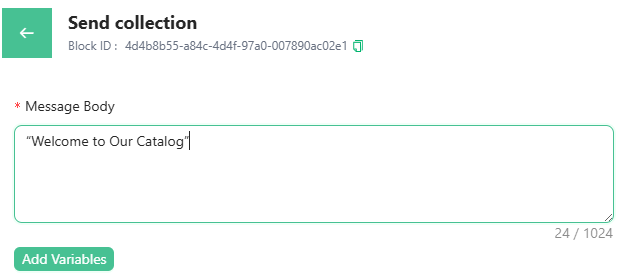
📝 Tip: Write an engaging one-liner to motivate clicks and exploration.
Catalog
Select the product collection you want to display to your customers.
The dropdown will list all the collections available from your connected Facebook Catalog.
⚠️ If you don’t see any options here, make sure you’ve created collections in your Commerce Manager.
Refer to the Facebook help guide for setup instructions.

💡 Pro Tip: Use smaller, category-based collections (like “Summer Dresses” or “New Arrivals”) for better engagement.
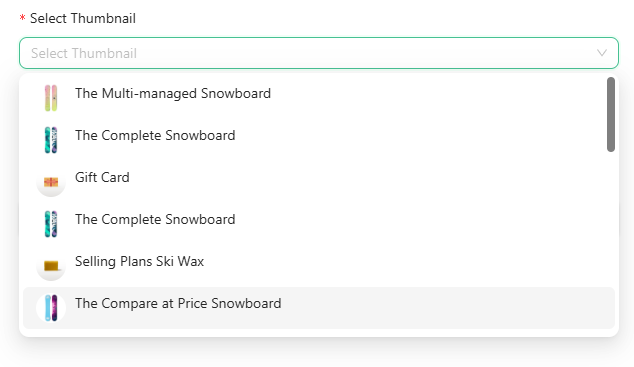
Thumbnail
Add an image thumbnail to make your collection card more visually appealing.
This gives users a quick preview of the products and helps them recognize the collection instantly.
Footer
The footer allows you to include additional context, promotional notes, or your brand tagline.
💬 Examples:
“Hurry! Limited stocks available.”
“Shop the best styles before they sell out.”
“Mark360 — Your Digital Shopping Assistant.”

📝 Tip: Keep your footer text under 60 characters for best visibility.
Store Response in Variable
You can create or use a previously created variable to store the customer’s selection or response.
💻 Example Variable: {{variable.user_selected_collection}}

If you’re creating a variable for the first time, simply type the variable name in the box. Once you click on Create "Variable Name", the new variable will be saved automatically.
After configuring all the required fields — Header, Question Text, Catalog, and Variable — click on the Add button to finalize your setup.
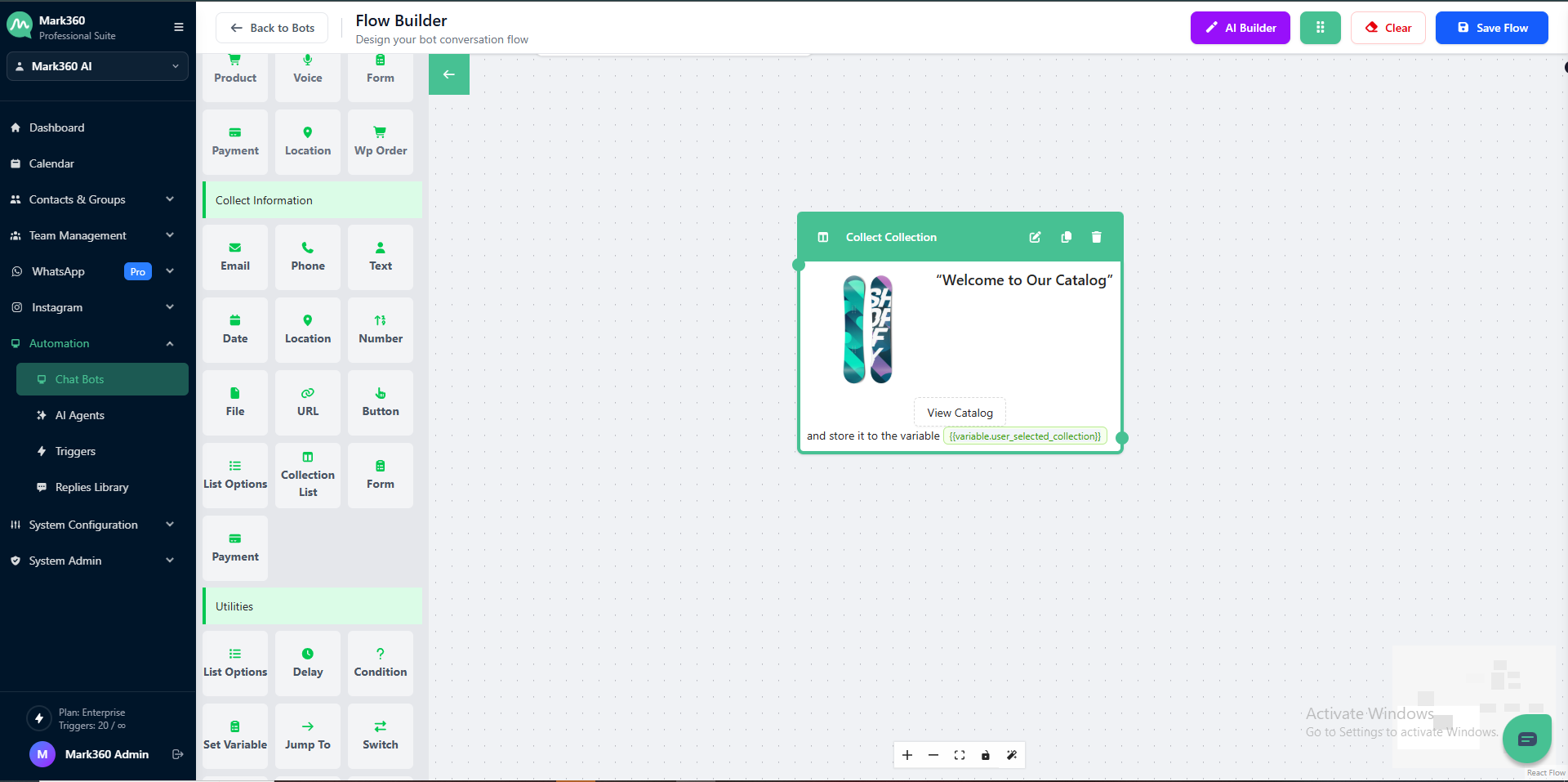
Once saved, your Collect Collection List card will appear in the Flow Builder like the example shown below
In Mark360 Bot Interface: